

7 Proven Ways to Fix “Word Found Unreadable Content” Error in 2026
You open up a Word document, only to receive an error message that states that there’s unreadable content in Word. But you’re not sure why that happened. So, at this point, you would want to know, “What does it mean when Word found unreadable content, and “Why did this error pop up?” “But most importantly, how can you fix it?” That’s why we bring you this updated 2026 guide with the latest tips and solutions to resolve the “Word found unreadable content” error. So, you can get your documents back safely.
Part 1: What Does It Mean When “Word Found Unreadable Content”?
So, “What does it mean when Word found unreadable content?” This happens when Word detects something in the file that it can’t read. The full error message typically says:
“Word found unreadable content in ‘[filename].docx’. Do you want to recover the contents of this document? If you trust the source of this document, click Yes.”
The “Word found unreadable content” error doesn’t mean the file is fully corrupted. It usually means part of the document, like formatting, images, embedded objects, or XML data, is damaged or incompatible. So, Word stops opening the file normally and asks permission to try a recovery.
Clicking “Yes” to the error message usually allows Word to recover the file. If successful, you may see a message like, “Errors were detected in this file, but Word was able to open the file by making the repairs listed below. Save the file to make the repairs permanent.”
But if recovery fails, a more serious error may appear, such as “Word experienced an error trying to open the file.” The error might pop up with suggestions to check file permissions, memory, or use the “Text Recovery” converter. The reasons for when you open a document to find the text illegible can be grouped into 3 categories:
- File corruption: Crashes, power outages, bad sectors, or save errors can damage the file.
- Problematic content: Images, frames, pasted text, embedded objects, or macros may be unreadable.
- Software or environment issues: Add-ins, file permissions, security settings, or format conversions can trigger the error.
Part 2: 7 Solutions for the “Word Found Unreadable Content” Error
The following are 7 “Word found unreadable content” error fixes to repair and recover the document:
Option A: Use Word’s Open and Repair Feature
The “Open and Repair” feature in Microsoft Word is a built-in tool designed specifically to detect and fix frequent document corruption. It’s non-destructive, meaning it tries to preserve your text, formatting, images, and other elements. Thus, if you open a document to find the text illegible, here’s how to employ the “Open and Repair” feature to fix the document:
Step 1: Open “Microsoft Word.” Then, head to “File.” Tap “Open.” Next, click “Browse.”
Step 2: Select the document you want to repair. Click the arrow next to “Open” and choose “Open and Repair.”
Step 3: Word will fix the file. But this may take some time. Once repaired, you can access the document normally.
Option B: Employ a Dedicated File Repair Tool
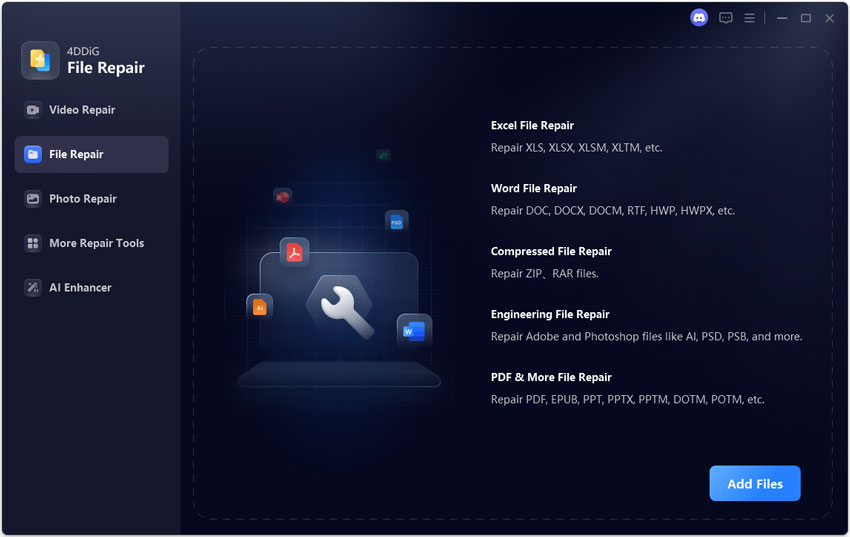
In case there’s unreadable content in Word and the “Open and Repair” tool can’t fix it, you can employ a dedicated Word Repair tool like the 4DDiG File Repair. It can quickly repair corrupted, unreadable Word files with high success in a few clicks. The tool also supports numerous Word document types like RTF, DOCX, DOCM, DOTM, etc. Here are its core functions in detail:
- The tool repairs Word files that won’t open, appear blank, show gibberish, or contain unreadable content.
- This app can recover text, images, fonts, headers, footers, and links from damaged Word files.
- It supports Word 2019, 2016, 2013, 2010, 2007, and earlier versions.
- Repairs multiple corrupted files at the same time (batch repair).
- Lets you preview files before saving them.
Here’s how to fix unreadable content in Word with this tool:

Step 1: Install and execute the Word File Repair tool on your PC or Mac. Then, choose “File Repair” from the tool’s main interface.
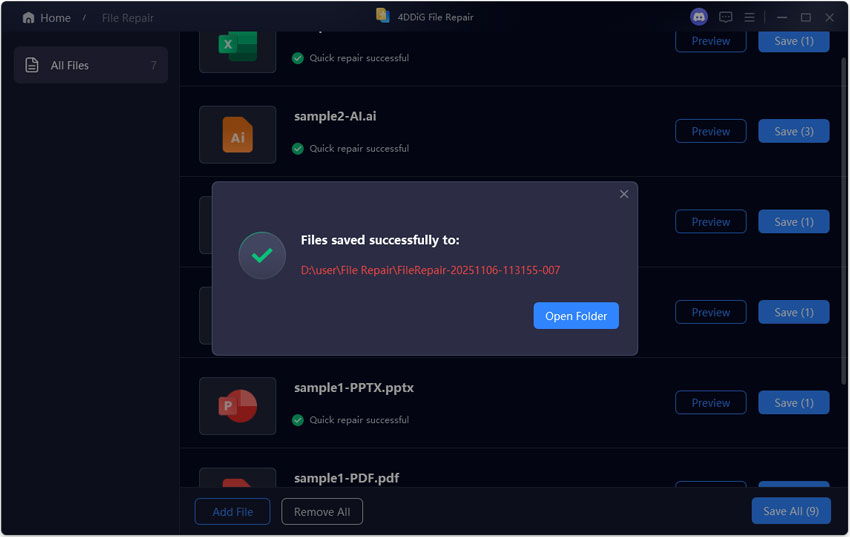
Step 3: Click “Export” to save the repaired Word file to a safe location.
Option C: Use the Recover Text From Any File Option
Sometimes “Open and Repair” can’t fix the “Word found unreadable content in ‘[filename].docx’. Do you want to recover the contents of this document?” error. If that happens, try the “Recover Text from Any File” option. It focuses on salvaging the text itself, ignoring the document’s structure, formatting, images, tables, and other elements.
This is useful when the file is severely corrupted, the header or XML is damaged, or the document comes from a non-standard source. But keep in mind that recovery may be partial, with text out of order or containing odd characters. Here’s how to employ the “Recover Text from Any File” option for a “Word found unreadable content” error fix:
Step 1: Open “Microsoft Word.” Then, head to “File.” Tap “Open.” Next, click “Browse.”
Step 2: In the “File Explorer,” select the unreadable Word file. Click the drop-down next to “Open.” After this, choose “Recover Text from Any File.”
Step 3: Word will convert the file, letting you access the text once the process is complete.
Option D: Open the File With Another Program
Opening a corrupted Word file in another program like WPS, or Google Docs can help pinpoint the problem behind the “Word found unreadable content’ error. If it opens there, the file is likely fine, and the issue is with Word or your computer settings, such as add-ins or security restrictions.
Option E: Use a Time Machine Backup
When you open a document to find the text illegible, try recovering it with a Time Machine backup if you possess one. This method functions well because corruption usually happens recently, during the last save, a crash, or another issue.
But Time Machine lets you restore the file as it existed before the problem happened. This ascertains that all formatting, images, tables, and macros are preserved. Besides, Time Machine offers multiple versions to choose from, letting you go back to the exact point before the corruption happened. Here’s how:
Step 1: Close “Microsoft Word.” Open the folder where the corrupted document is stored. Launch “Time Machine” from the menu bar.
Step 2: Use the timeline or arrows to go back to a date before the corruption happened.
Locate and preview the document to ascertain it’s the correct version.
Step 3: Click “Restore” to copy it back to its original location, choosing whether to replace or keep existing files.
Option F: Disable Protected View
Protected View is a security feature in Microsoft Word that opens files from the internet or email in read-only mode to protect your computer. It blocks editing, macros, and certain content. But sometimes, it can be too restrictive and cause the “Word found unreadable content” error by blocking important parts of the file or creating compatibility issues.
If the document is from a trusted source, temporarily turning off Protected View may help, especially if downloaded files open blank or get stuck while loading. Follow the instructions beneath to disable Protected View for a “Word found unreadable content” error fix:
Step 1: Open Microsoft Word. Then, head to “File.” Next, choose “Options.”
Step 2: Select “Trust Center.” Next, tap “Trust Center Settings.” From the left-hand menu, open “Protected View.”
Step 3: Untick all three options. Hit “OK.”
Option G: Save the Corrupted File to .doc or .rtf
Saving a corrupted Word file as “.doc” or “.rtf” might fix the “Word found unreadable content in ‘[filename].docx’. Do you want to recover?” error. This is because changing the file format forces Word to rebuild the document and often removes damaged parts.
The .rtf format keeps basic formatting but strips away complex elements that may contain corruption. While the older .doc format uses a different structure that can filter out errors and create a cleaner, usable file. But first, make a copy of the Word document. Then, save the corrupted Word file to the “.docx” or “.rtf” file format.
Part 3: How to Prevent the “Word Found Unreadable Content” Error
While you cannot completely prevent the “Word found unreadable content” error from happening in the future, you can reduce its chances of occurrence. Here’s what you’ll need to do:
- Enable AutoSave and AutoRecover: Automatically save backup copies so you can restore recent work if a file gets corrupted.
- Avoid editing on external or network drives: Connection drops or sync issues can corrupt files during saving.
- Close Word properly every time: Sudden shutdowns can interrupt saving and damage the file.
- Keep Microsoft Word updated: Updates fix bugs and issues that may cause file corruption.
Conclusion
We’ve answered your query, “What does it mean when Word found unreadable content in Excel, and how do I fix it,” according to the latest knowledge. When there’s unreadable content in Word, it doesn’t always mean the whole file is lost. You can fix it using built-in features, like “Open and Repair,” and “Recover Text from Any File.”
If that doesn’t do the job, open the file in another program, restore it from backups, disable Protected View, or save the file as .doc or .rtf. However, in case the Word file is corrupted, 4DDiG File Repair is recommended. It can quickly restore text, images, and formatting from corrupted Word files, even if they’re severely damaged, with high success.